
शून्य · Shunya
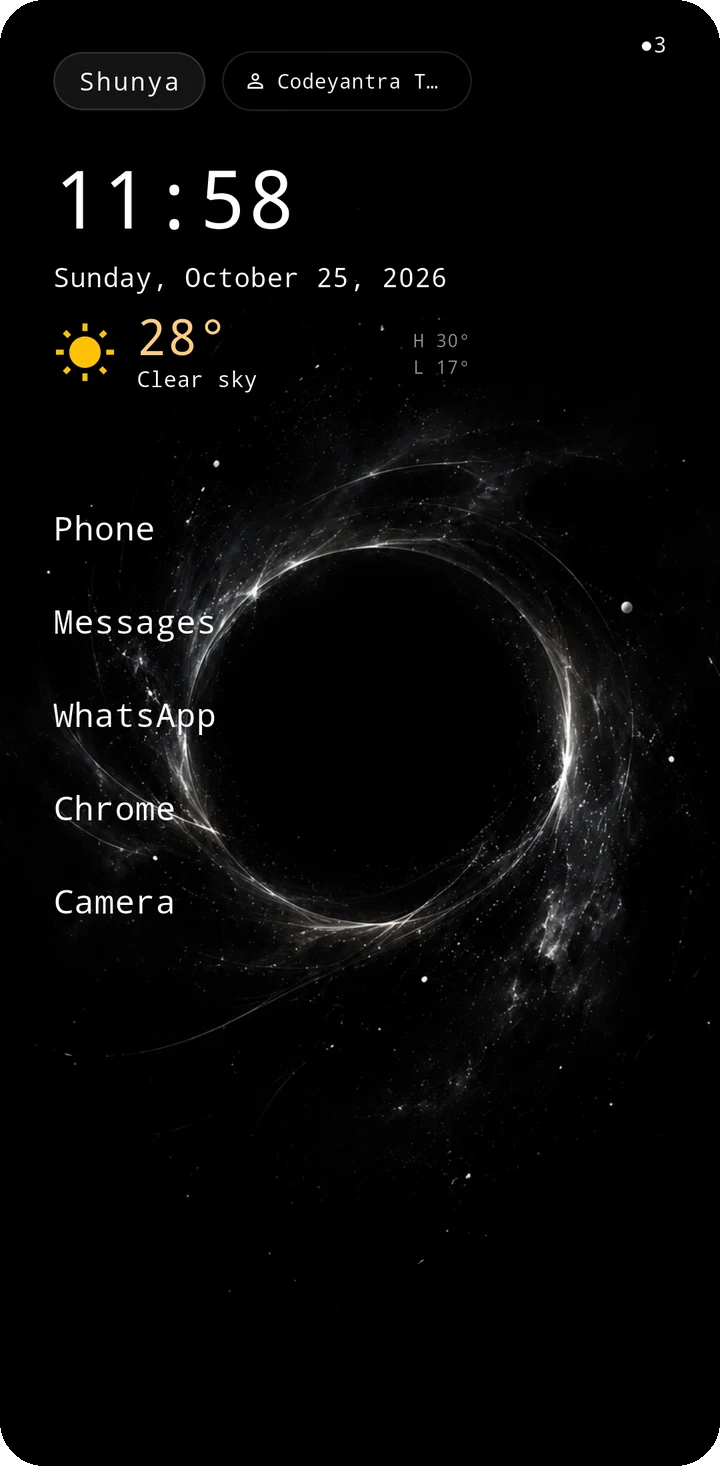
A minimal Android home screen. Almost nothing on Home: the time, the date and five words you choose. Everything else is one swipe away, and everything private stays on your phone.
Page color preview
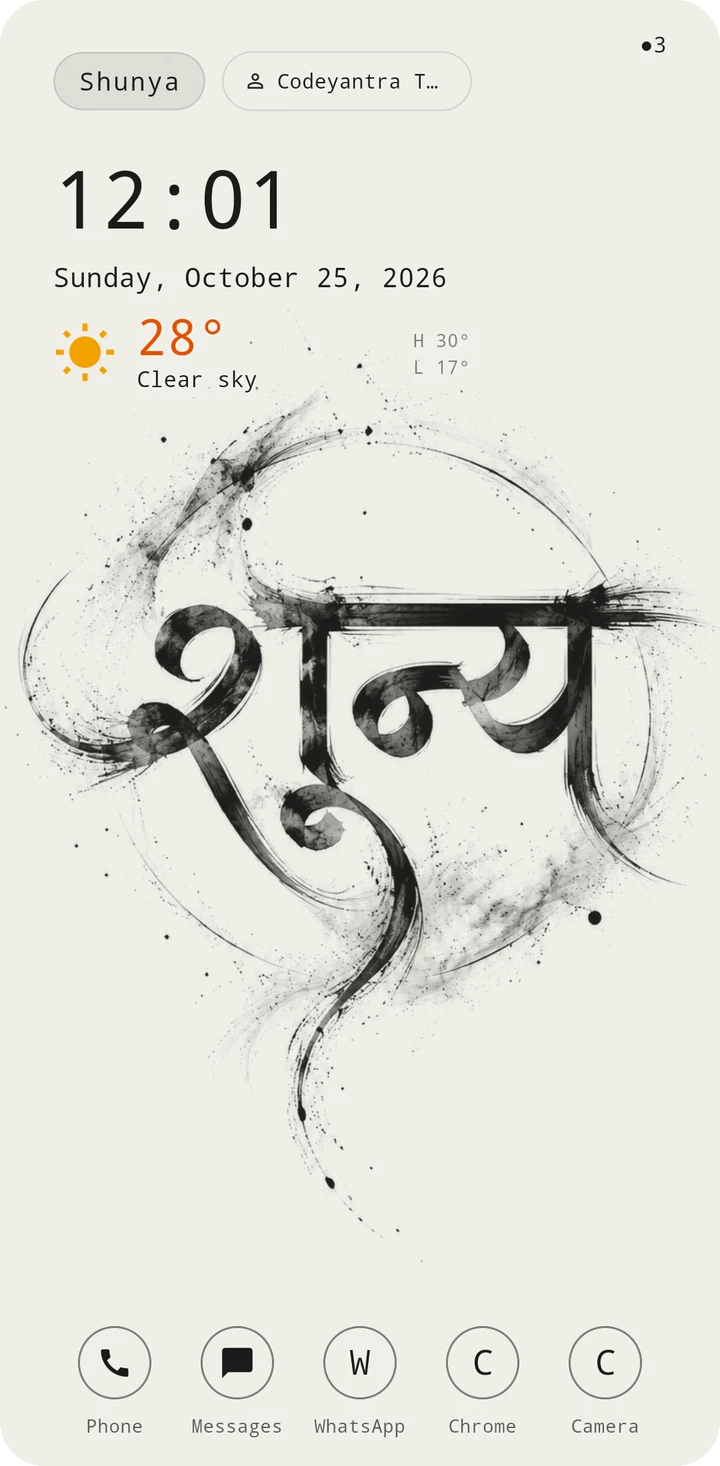
Matte gray is a page preview. App screenshots show the available black and matte-white finishes.
What makes it different
- Calm by design. Text, not icon grids. Nothing demands your attention.
- Private by default. No ads, no analytics, no account needed. Your contacts, messages, PIN and layout stay on the phone. Read the privacy policy.
- Phone, Messages, notifications and automation in the same quiet style.
- Accessible. Follows the system text size, works with screen readers, and uses high-contrast black or matte white.
Getting started
- Install Shunya and press Home. Android asks which launcher to use; choose Shunya and "Always".
- The setup guide offers each optional step (Phone & Messages, notifications, profile, wallpaper). You can skip any of them and come back later; every permission is asked only when you use the feature that needs it.
- Long-press a favourite on Home to choose which app it opens.
- Home
- App list
- Lock & hide apps
- App Lock Guard
- Phone
- Messages
- Shield
- Notifications & Control Center
- Modes & Routines
- Widgets
- Profile & account
- Premium
- Accessibility
- Permissions
Home
Home shows the time and date, a small Shunya label and exactly five text slots. Phone and Messages are fixed; the other three are yours.
- Swipe up: open the app list. Swipe down: Control Center (the default; you can change this to a side swipe in Settings → Notifications, and then swipe down opens app search).
- Long-press a favourite: assign, change or clear it.
- Long-press the Shunya label: Hidden Apps. Double-tap it: Settings. Both ask for your PIN or fingerprint.
- Tap the notification dot to open the notification centre.
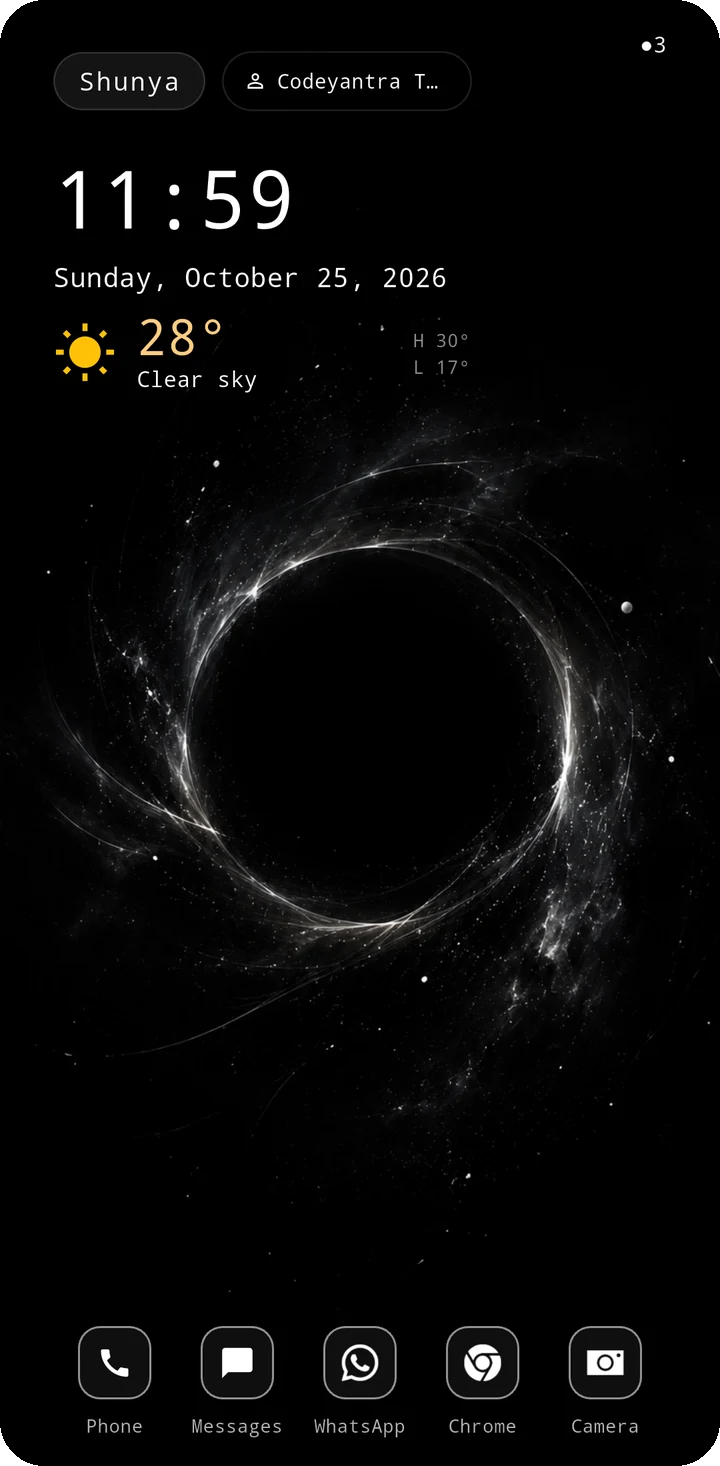
Choose the Home style that suits you: keep five favourite apps as a quiet text list, or use the optional dock for familiar app icons. Both keep the clock and date clear, with the rest of your apps one swipe away.
App list
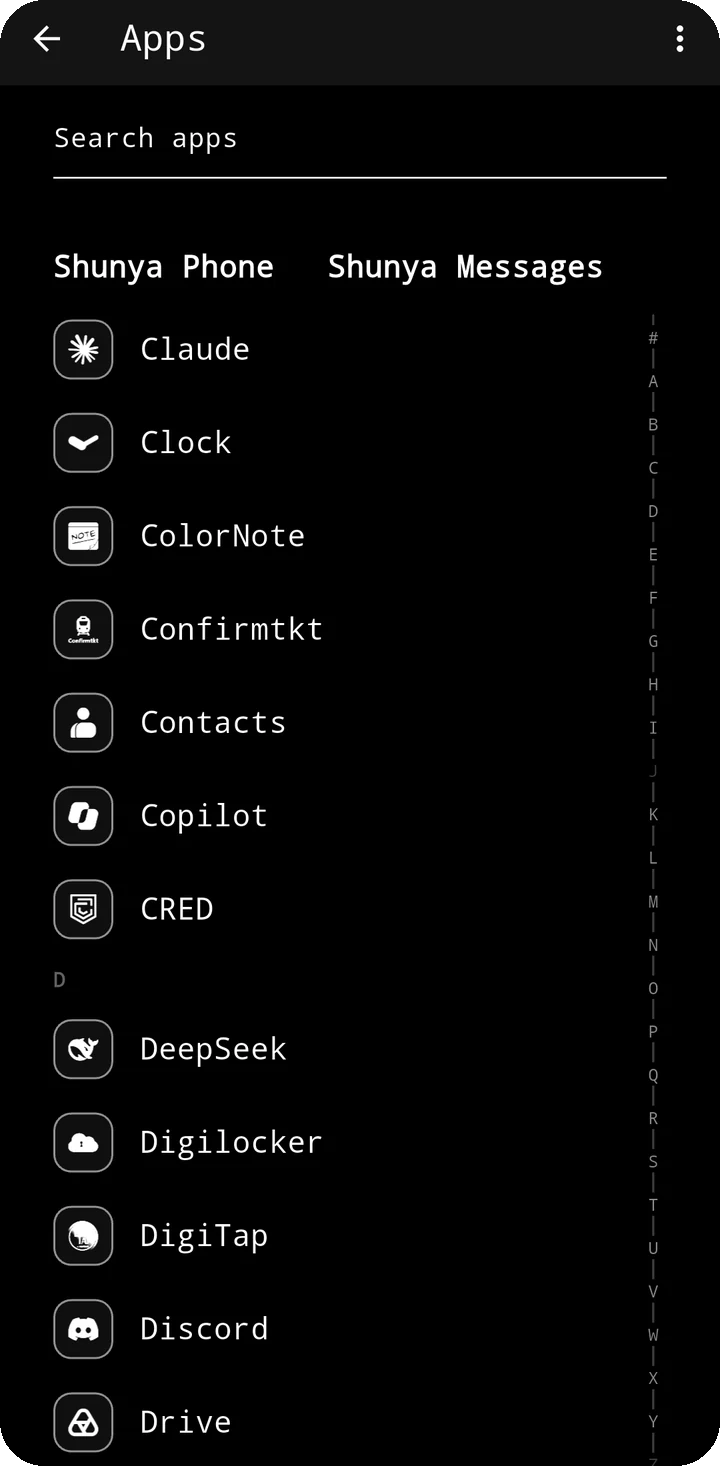
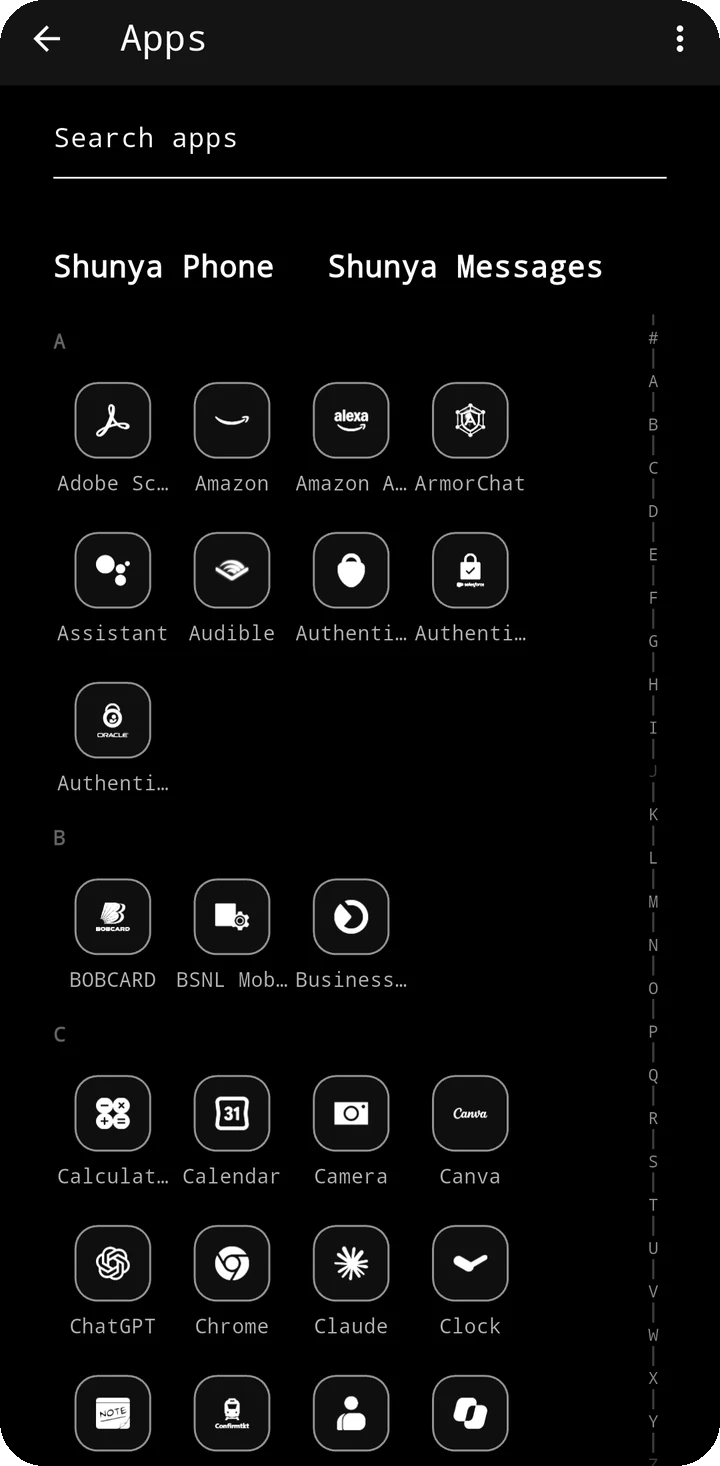
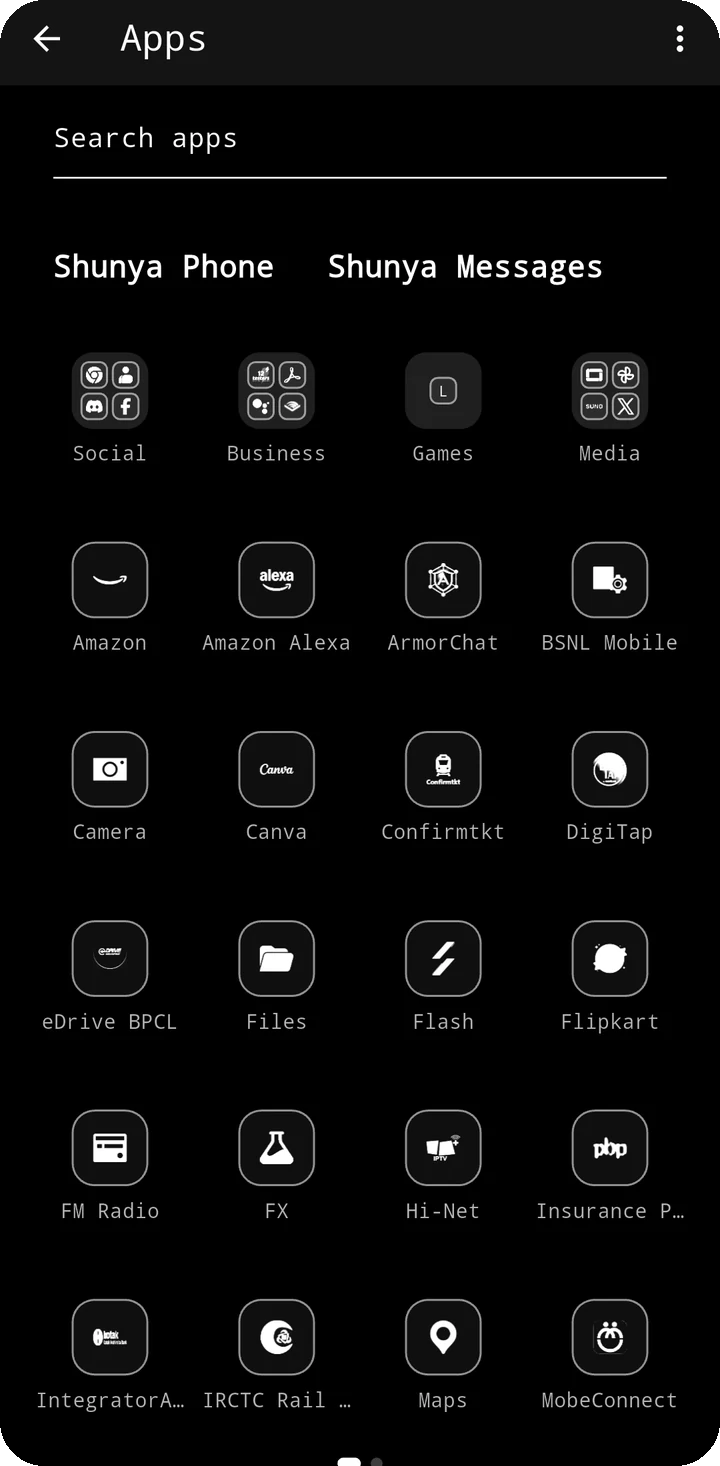
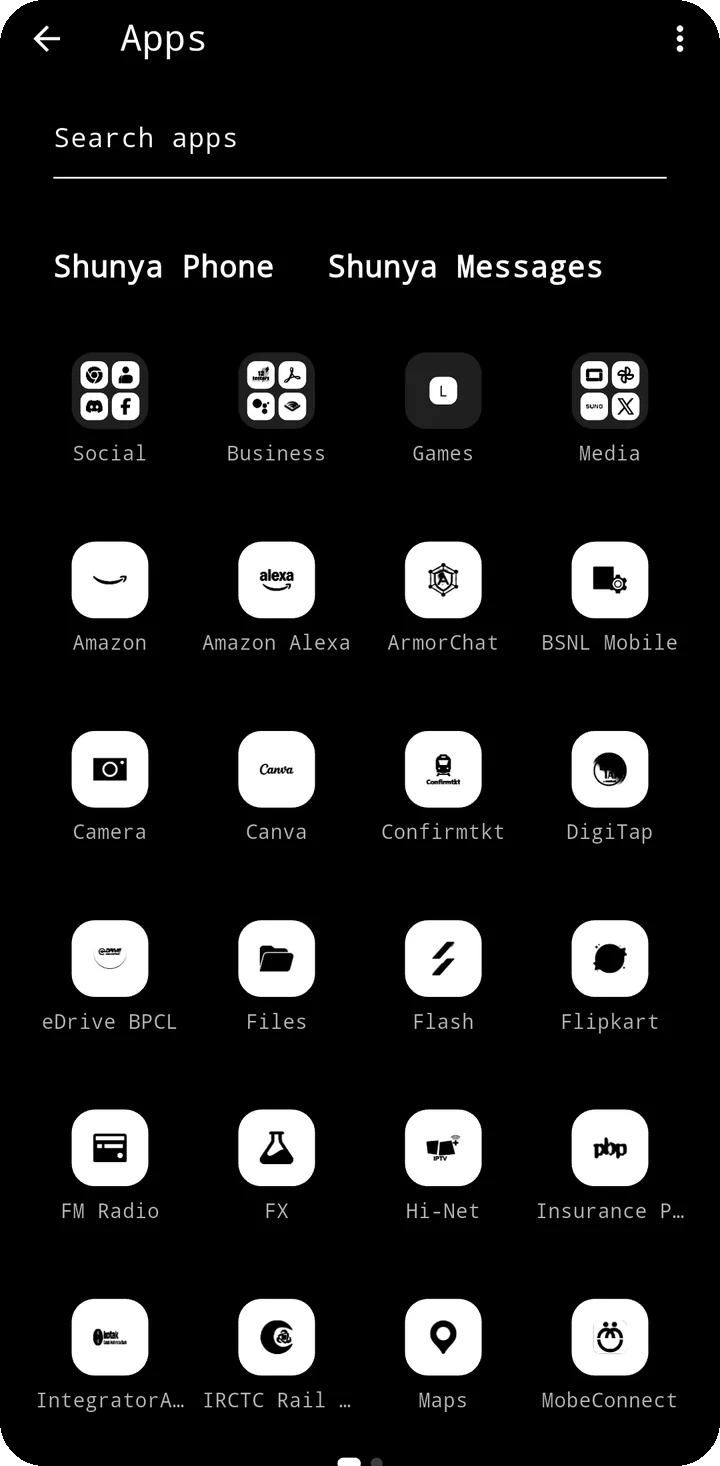
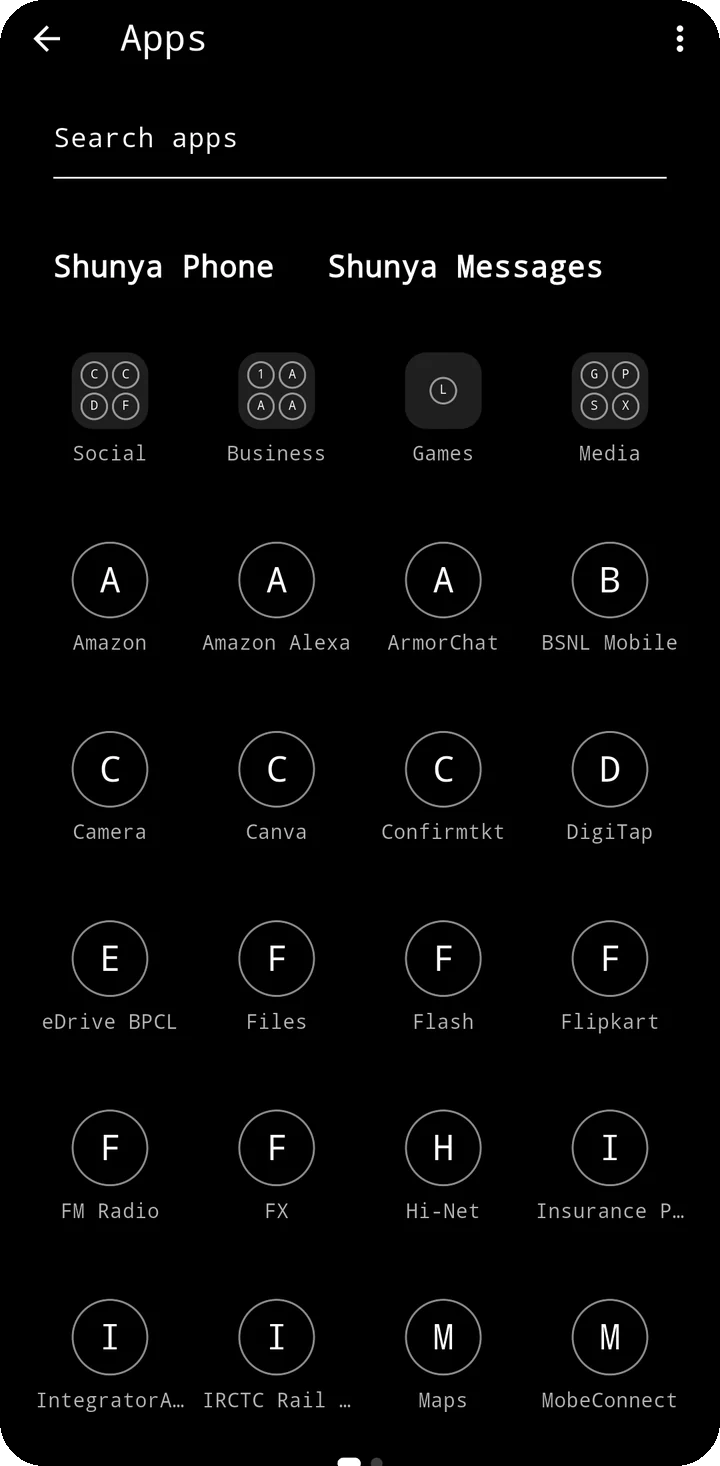
Browse every installed app in a clean A-to-Z text list, or switch to a premium grid layout. Swipe down from Home to search, or slide along the letter rail to jump to a name.
The A-to-Z grid groups icons by letter; swipe pages let you move through the grid screen by screen. Folders keep related apps together, while letter icons make the grid easier to scan at a glance.
Long-press any app for options to hide it, lock it, give it a nickname or open its Android app details. When two apps share a name, their package names help tell them apart.
Lock and hide apps
From the long-press menu you can lock an app (PIN or fingerprint to open it) or hide it (gone from the list, search and notifications; still reachable from Hidden Apps).
- The first time, you create a PIN. It is stored only as a salted hash and never leaves the phone.
- Fingerprint or face unlock is optional and handled entirely by Android.
- Locked app notifications can be opened only after you unlock.
App Lock Guard (Accessibility service, optional)
Android also opens apps from Settings, the Play Store and the Recents screen. To protect locked apps there too, Shunya offers App Lock Guard. It is off until you enable it in Android Settings → Accessibility.
It only sees which app is opening. It cannot read anything on your screen, does not type or tap for you, and does not store or send what it sees. See the full explanation.
Phone
Open Phone from Home. Tabs for the dialpad, recent calls and contacts.
- Dialpad with T9 contact search: type letters on the number keys to find a contact.
- Recents shows calls, missed calls and unknown numbers. Tap a number to call or save it.
- Contacts with favourites, merging of duplicates and links to a contact's apps.
- On an incoming call a full-screen caller screen appears with the caller's name and, if you use Shield, any known spam warning.
- To make Shunya your calling app, choose it in Android Settings → Default apps → Phone. You can switch back at any time.
Messages
Open Messages from Home. It reads your SMS and sorts them into General, OTP and Promotions on the device.
- Reading works after you allow SMS. To send and receive in Shunya, tap "Set as default" and confirm Android's prompt.
- Codes are detected carefully (account numbers, amounts and dates are not mistaken for an OTP).
- You can move a sender to another category; Shunya remembers it.
- Nothing is sent without you tapping Send. Picture messages (MMS) are not supported yet.
Shield: caller and spam protection
Shield helps you recognise unwanted calls and messages.
- On your phone: block numbers, mark spam, and see offline hints about a number.
- Community (optional): look up a number or report it. Only a keyed hash of the number is sent, never your contacts, and you can delete your community data from the Shield screen.
- Shield only helps you decide; it does not block calls you did not choose to block.
Notifications and Control Center
Swipe down on Home (or tap the notification dot) for the Control Center, with all your notifications below.
- Tiles: Wi-Fi and Bluetooth (show state and open Android's panel), flashlight, Do Not Disturb, sound mode, brightness.
- Notifications: read, open and dismiss them in one list. Notifications of hidden apps are filtered out. Previews can be turned off in Settings → Notifications.
- To collect notifications, allow Notification access for Shunya in Android Settings. Everything stays on the phone.
- Brightness needs "Modify system settings" and Do Not Disturb needs "Do Not Disturb access"; Shunya asks only when you tap the tile.
Modes and Routines
Modes (like Work, Sleep and Driving) change Do Not Disturb, ringer and brightness. Routines turn a mode on by themselves: by time, a place, Wi-Fi, Bluetooth or charging.
- Pick a template or build your own. A place is set by choosing it on a map or using your current spot.
- Switch a mode by hand from the Control Center row; this always wins over routines.
- If Shunya cannot be sure a condition is true (no location fix, no permission) it does nothing rather than guess.
- Shunya puts back your settings only if you have not changed them yourself. A history shows what ran and what failed.
- Rules, places and history are stored encrypted on the phone.
Widgets
Optional Shunya widgets can sit on Home: digital clock, date, analogue clock and weather. Open the app list's ⋮ menu → Widgets, then drag a widget onto Home; it snaps to Home's text margin. Weather is opt-in: it asks for your city or location only when you add it.
Profile and account
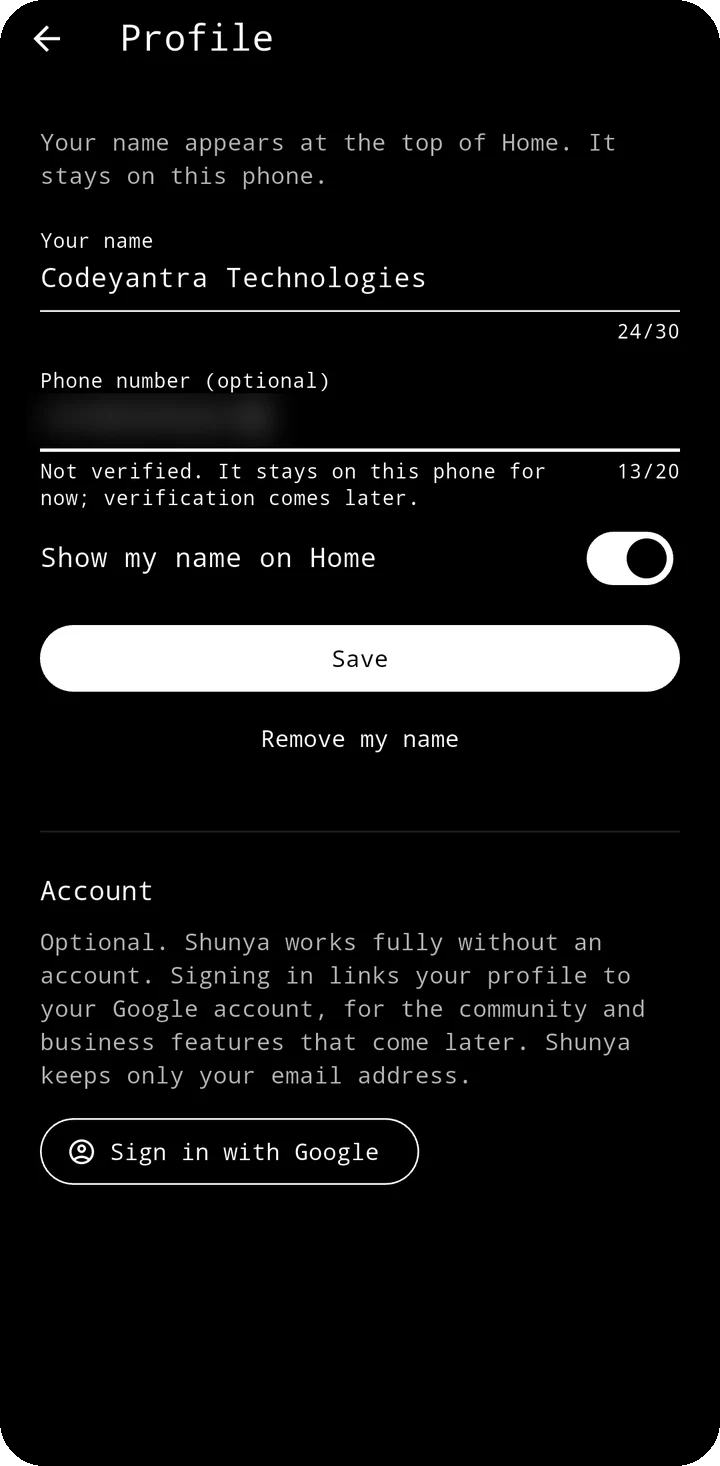
Profile holds your name (shown on Home) and an optional phone number. Both stay on the phone.
- Sign in with Google is optional, and only for community and business features. The launcher never needs it.
- Delete account permanently removes your account and what is linked to it on the server.
Premium
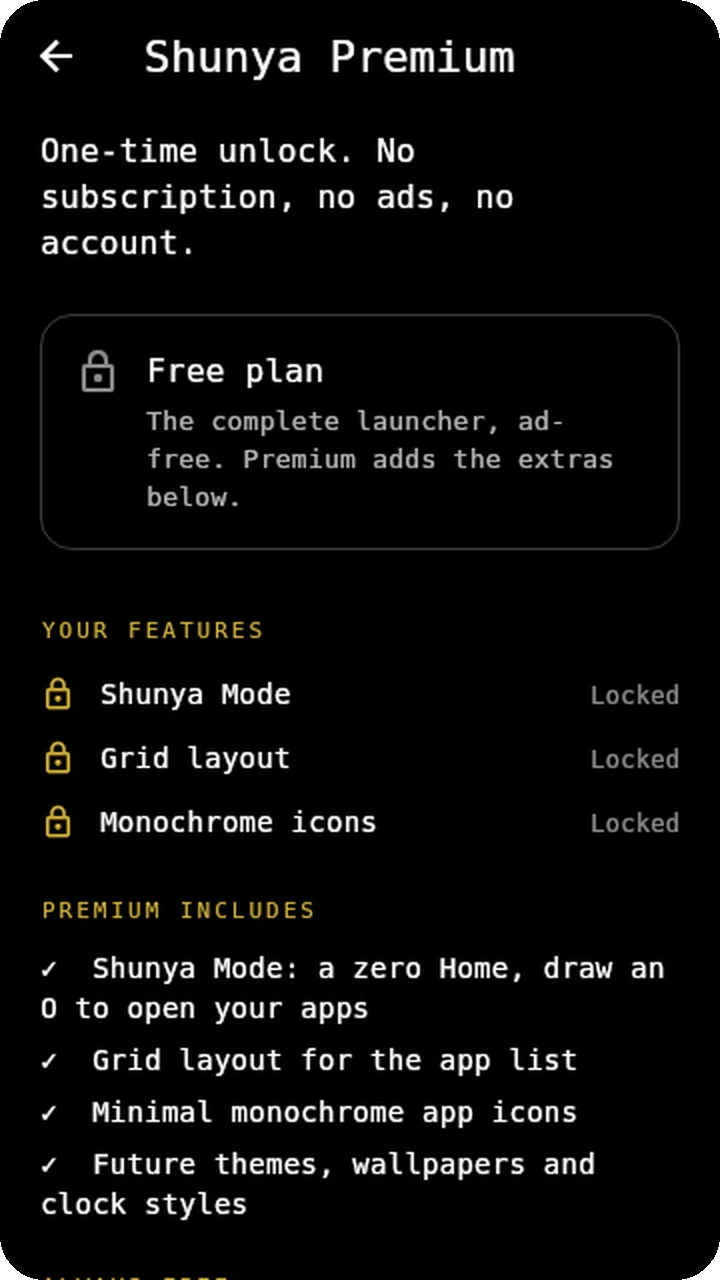
Shunya is a complete, ad-free launcher for free. Premium is a one-time unlock (no subscription) for extras:
- Shunya Mode: a zero Home. Only the time, "शून्य" and five round shortcuts. Draw an O with your finger and a portal opens with your apps. Apps vanish into a black hole when you switch to it.
- Grid layout and monochrome icons for the app list.
Start the free 7-day trial from the Premium screen, once. After it ends nothing is deleted; Home goes back to the list and your choices are kept. Restore purchases is on the same screen.
Accessibility
- Text follows Android's font size; layouts reflow instead of clipping.
- Controls are labelled for TalkBack. Gestures also have buttons: for example, an "Open apps" action on the Home clock.
- High contrast: AMOLED black or matte white.
- Gestures have tap alternatives, such as the notification dot and the "Open apps" action.
Permissions
Shunya asks only when you use a feature. The full list, with the reason for each and for the Accessibility service, is in the privacy policy.
- Contacts, Call log, Phone, Calls: Shunya Phone.
- SMS: Shunya Messages.
- Notifications & notification access: the notification centre.
- Location (including background): weather and place routines.
- Bluetooth, Wi-Fi state, Do Not Disturb, system settings: routines and Control Center.
- Biometric: unlock locked apps with your fingerprint.
- Accessibility (optional): App Lock Guard.